Create a URL Rewrite Rule in the dashboard
Create URL Rewrite Rules in the Transform Rules tab under Rules. Refer to URL rewrite examples for examples of rule definitions.
-
Log in to the Cloudflare dashboard, and select your account and website.
-
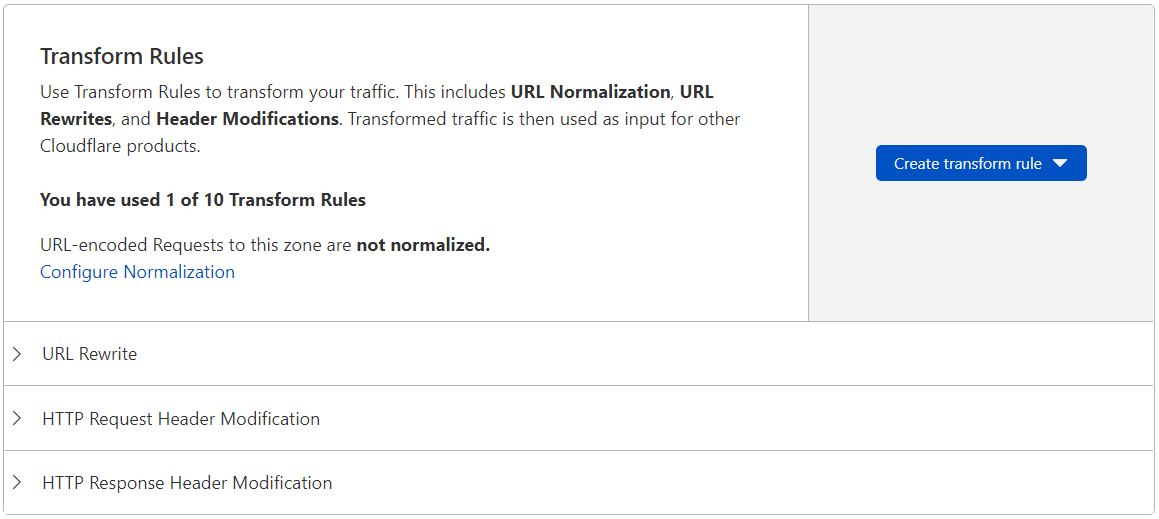
Go to Rules > Transform Rules.
-
Select Create transform rule > Rewrite URL.
-
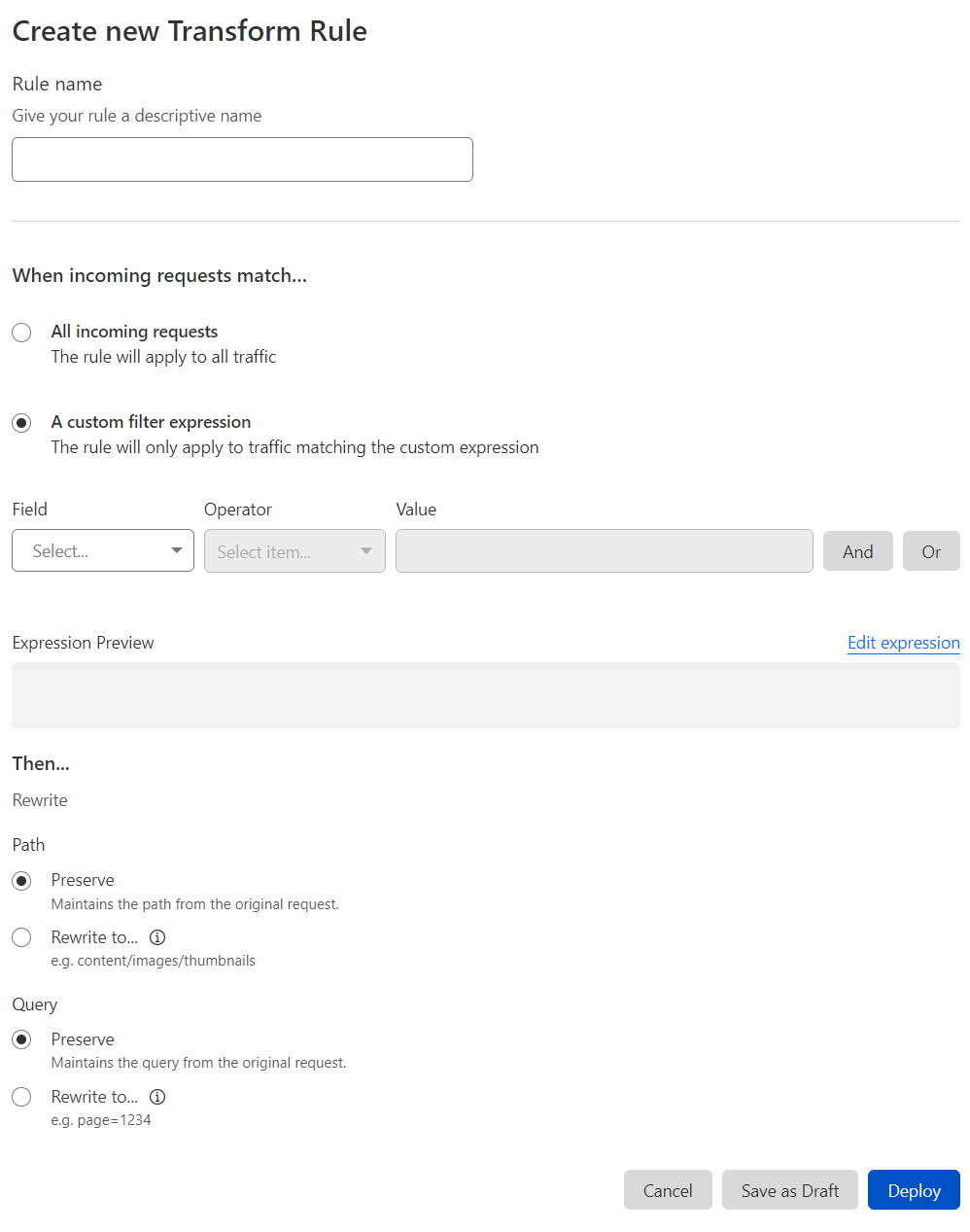
In the page that displays, enter a descriptive name for the rule in Rule name.
-
Under When incoming requests match, select if you wish to apply the rule to all incoming requests or only to requests that match a custom filter expression.
-
(Optional) To define a custom expression, use the Expression Builder (specifying one or more values for Field, Operator, and Value) or manually enter an expression using the Expression Editor. For more information, refer to Edit rule expressions.
-
Define the action for your URL Rewrite Rule by selecting one of the available options displayed as radio buttons, and then a value from the drop-down list, depending on the action:
-
If you select Rewrite to > Static, enter the string that will replace the original URL path (or query string). For example, enter
welcome-gb.htmlto rewrite the original URL path to/welcome-gb.html. -
If you select Rewrite to > Dynamic, enter a rewrite expression that defines the dynamic URL rewrite to perform.
-
If you do not want to change the value of a component of the original request (the URL path or the URL query string), choose the Preserve action for that component.
For more information, refer to URL rewrite parameters.
-
-
To save and deploy your rule, select Deploy. If you are not ready to deploy your rule, select Save as Draft.
After you choose an option, you return to the Transform Rules dashboard interface, which displays your new rule.
If you choose to deploy your URL Rewrite Rule, the new rule will be enabled. If you save the rule as a draft, the new rule will be disabled.